This page provides details for configuring Database Adapters in edgeCore. There are slight differences in configuration between the various types of Database Adapters – those differences are specified in the details below.
Supported Databases
Databases that require a driver will not be available when configuring new connections until the driver has been installed. Refer to Installing Database (JDBC) Drivers for more information. Note: edgeCore versions 3.10.0 or higher will show all supported database connection types, regardless of whether the driver is installed in the /libs directory.
| Database | Notes |
|---|---|
| MySQL / MariaDB | |
| jSONAR | |
| PostgreSQL | |
| SQL Server | If you need trustServerCertificate to get a connection, you have to switch from SQL Server to SQL Server URL |
| DB2 | Driver required |
| Oracle | Driver required |
| Sybase | Driver required |
Database Connection
The first step in configuring a new Database Adapter is to create a new Pipeline Connection. Enter the Pipeline view and click + to create a new Pipeline Connection.
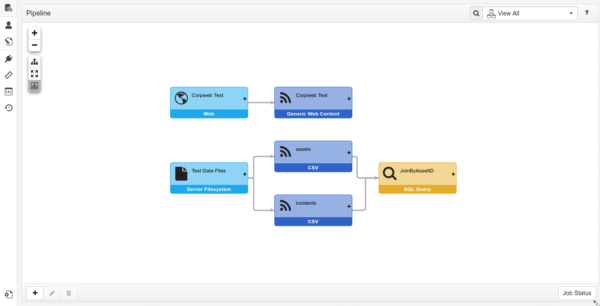
Adding a Database Connection
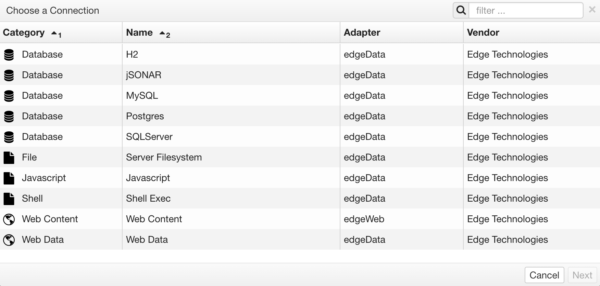
When adding a connection, administrators are presented with a dialog listing adapter types. Select one of the Database adapters, and click “Next”:
Step 1: Connection Details
The Database connection wizard will vary based on the type of database selected. The example below shows H2.
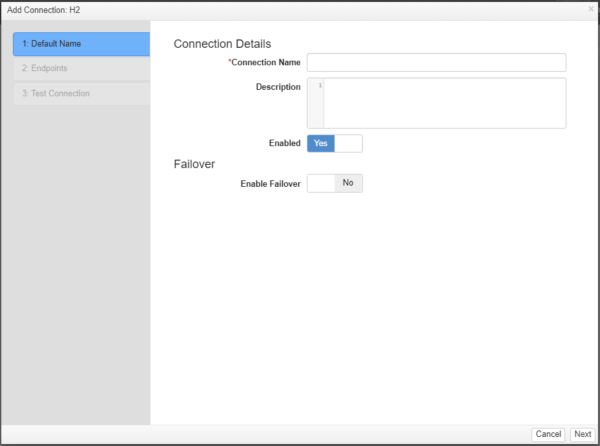
The following are the basic options for all Database Connections:
| Option | Description | Required | Example |
|---|---|---|---|
| Connection Name | Display name of the Connection. | Yes | Wiretap Metadata |
| Description | This is where the administrator can enter notes for the connection. | No | |
| Enabled | If yes, this Connection will count against the license limit. | No | |
| Credentials | Username/Password to be used for authorization to access this connection. | No | johndoe 1234 |
The following are the specific settings for MySQL, PostgreSQL, and jSONAR:
| Option | Description | Required | Example |
|---|---|---|---|
| Database Name | Name of the database to be accessed. | Yes | wiretap_metadata |
| Host/IP | IP address or hostname of database server to be accessed. | Yes | wiretap01 |
| Port | Port of database server to be accessed. | Yes | 3306 |
The following are the specific settings for H2:
| Option | Description | Required | Example |
|---|---|---|---|
| JDBC URL | JDBC style URL of the H2 database to be accessed. | Yes | jdbc:h2:~/test |
Failover
Failover is an optional setting that enables multiple endpoints to be configured for a connection. When the primary connection goes down, edgeCore will “failover” to the next configured endpoint.
Enable Failover
| Yes | No |
|---|---|
| Failover is enabled for this connection, and the next step will allow multiple endpoints to be configured. | Failover is disabled for this connection, and the next step will allow a single endpoint. |
Once the proper settings have been specified, click “Next”.
Step 2: Endpoints
If failover is disabled, then properties for a single endpoint will be displayed:
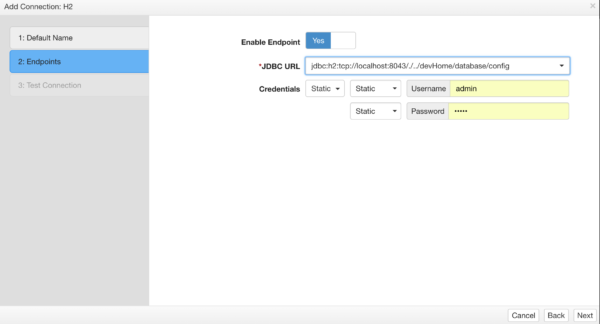
If failover is enabled, then a list of endpoints will be available:
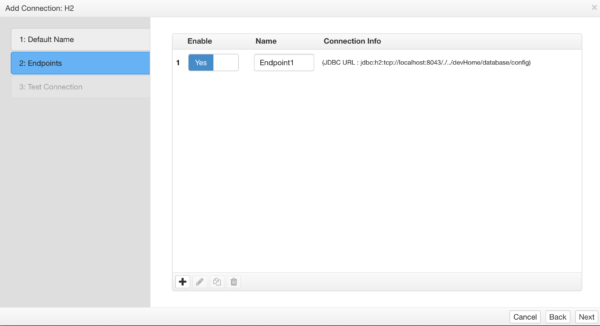
Information for each endpoint can be modified using the edit button:
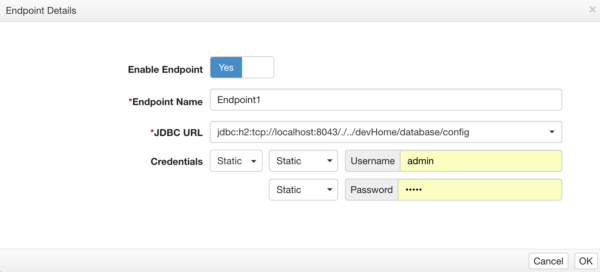
Setting the “Enable” property to “No” will result in that endpoint being ignored during failover.
Step 3: Test Connection
Edge will attempt to establish a test connection with the database server.
Success
If the test connection is successful, a green validation message will appear.
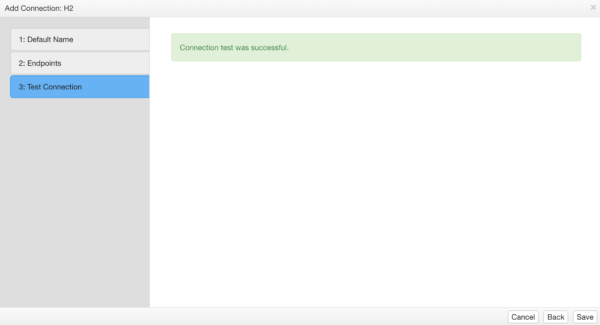
Unsuccessful
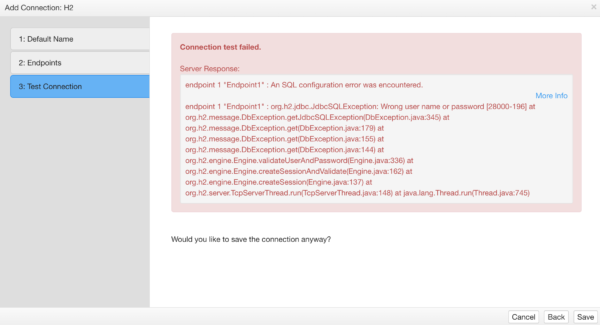
If the test connection is unsuccessful, a red validation message will appear. Click the “more info” link to get additional information on why edgeCore was unable to connect to the configured source.