
System Variables are about accessing data. They differ from Secured Variables in several ways:
- System Variables are defined via
[Install_Home]/conf/custom.propertiesand[Install_Home]/conf/local.properties, andlocal.propertiesis not included in backups / restores. - System Variables can also be defined via API and CLI (see below).
- System variables can also be defined in the admin user interface (see below).
- Secured Variables are not exposed as Page Variables. They are used to restrict data, not to add interactivity.
Usage
System Variables are typically used in connections and feeds to help isolate system-specific environment settings. Administrators can set up variants of local.properties for Dev, QA, and Prod systems. They can be used directly when a Connection, Feed, or Transform property supports Expressions, and they can also be used inside of a Secured Variable or Credential when its default value is configured as an Expression rather than a Static Value.
Defining System Variables
The recommended way to set up System Variables is to declare the available System Variables in [Install_Home]/conf/custom.properties and override them as needed via [Install_Home]/conf/local.properties:
There are two types of System Variables: Standard sysVar and Encrypted encSysVar. The first ‘sysVar’ variable type is not encrypted, and the administrator can see the value when inserting it into an Expression. The second ‘encSysVar’ variable type is encrypted. When encrypted encSysVars are accessed, their values in the properties file will be encrypted if necessary. The encSysVar’s value will be displayed as a standard ‘****’ when inserting it into an Expression.
Example Steps:
- Edit
[Install_Home]/conf/custom.properties - Add a standard System Variable named eventDbHost with a value of ‘localhost’:
sysVar.eventDbHost=localhost
- Add an encrypted System Variable named eventDbUser with a value of ‘anonymous’:
encSysVar.eventDbUser=anonymous
- Add an encrypted System Variable named eventDbPass with a value of ‘changeme’:
encSysVar.eventDbPass=changeme
- The system will need to be restarted for these named variables to be scanned.
Creating/Modifying System Variables via API and CLI
- To create/modify system variables via API, call PUT /public/sysvar/{varName}
- To create/modify system variables by using the edge CLI, run the following command: sysvar [–put] [-k] [-v] [-e] [-r]
Creating System Variables in the UI
To create system variables in the user interface, do the following:
- Go to Provision Defaults > System Variables.
- Click Create Variable.
A pop-up is displayed.
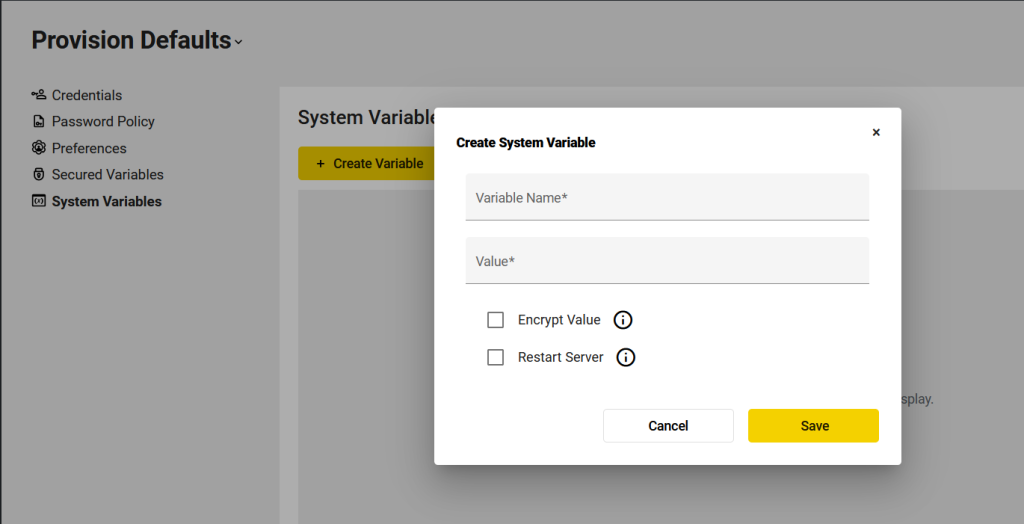
- In the pop-up, do the following:
a) In Variable Name, enter a name for the variable.
b) In Value, enter a value for the variable.
c) Select the Encrypt Value checkbox to encrypt the value prior to storage.
d) Select the Restart Server checkbox to restart the server after updating the value. If you do not want to restart the server right away, you can do so later. Restarting the server is required for updates to go into effect. - Save your changes.
– If you have selected the Restart Server checkbox, the server will be restarted, and you will see the newly created system variable.
– If you have not selected the Restart Server checkbox, you will be notified that there are pending changes and that you need to restart the server to update them. In this case, you need to click the Restart Server button.
Every system variable you create will be stored in the local.properties configuration file.
Editing System Variables in the UI
To edit a system variable:
- Click on the system variable to select it.
- Click Edit.
A pop-up containing information about the variable is displayed. Please note that you cannot change the Variable Name in the UI. You can do so in the local.properties configuration file. - Save your changes.
– If you have selected the Restart Server checkbox, the server will be restarted, and the system variable will be updated.
– If you have not selected the Restart Server checkbox, you will be notified that there are pending changes and that you need to restart the server to update them. In this case, you need to click the Restart Server button.
Deleting System Variables
To delete a system variable, remove it from the local.properties configuration file and restart the server.