Obtaining a License
To request a license, contact your product reseller, account manager, or Edge Support.
License File Format
The license file is a .properites file containing the following:
- Product licensing information
- License expiration date
- Licensing features
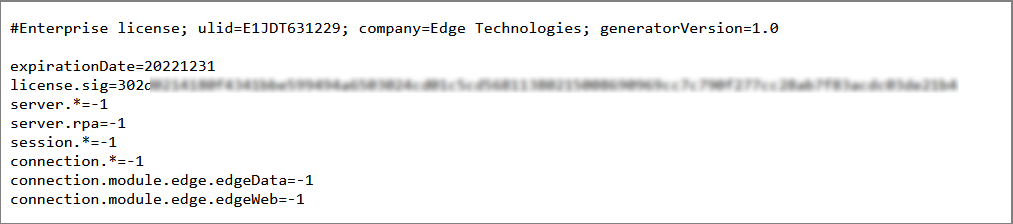
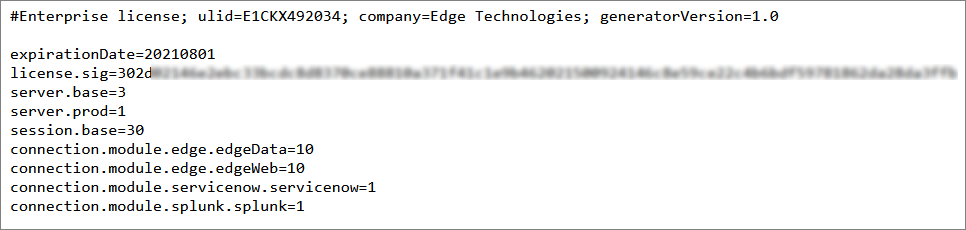
If you requested an unlimited license, then -1 will be displayed next to all features. If, however, you requested a limited license, you will see the allocated number next to each feature.
Unlimited license example:
Limited license example:
License Features
Licenses provide limits for:
- Server Features
- Connection Features
- Session Features
Server Features
Server features apply to the whole edgeCore instance.
|
Feature |
Description |
|
server.base |
total number of licensed servers |
|
server.prod |
number of production servers |
|
server.rpa |
number of servers with RPA enabled |
Connection Features
These features are specific to connections and will contain specific module names.
|
Feature |
Description |
|
connection.module.<vendorName>.<moduleName> example: connection.module.servicenow.servicenow |
number of licensed connections by module name |
Session Features
These features are specific to user sessions.
|
Feature |
Description |
|
session.base |
total number of sessions |
|
session.rpa.play |
any RPA user that has permission to invoke scripts |
|
session.rpa.record |
any RPA user that has the permission to create/edit scripts; This requires the server.rpa feature; |
Initial Installation
After obtaining a license and installing edgeCore (Linux/UNIX or Windows), take the following steps:
- Provide username and password (admin / admin) and log in.
Once in, you are notified that the product is not licensed. - Click Update license.
A pop-up is displayed. - Upload the license file.
The uploaded file is displayed, and you can view its content by clicking on it. - Click Install.
The dialog is populated with license information, that is, licensed features and expiration date. - Close the dialog.
You are on the Welcome screen. (video)
Running Without a License
You do not need a license to start up Edge. You can install and start up the system without a license. The application will have very limited functionality but will allow you to navigate to the above screens and then install a license. You can alternatively install a license from the command line.
License Expiration & Access to Edge
If a license expires, the administrator is able to log into Edge but will only have the Manage License permission.